How to use item model
DataWidget can be synced with item model by using DataclassDelegate and DataclassMapper.
DataclassDelegate defines two types of data:
Dataclass type: stored with
DataclassDelegate.TypeRoleDataclass data: stored with
DataclassDelegate.DataRoleasdict
To get the dataclass instance, user can retrieve these values from the model item and construct it. Constructing dataclass instance document covers that topic.
As explained in How to create dataclass widget, the field type can be different from the widget data type. In this case we need to define the unary callable converters as the metadata of the field.
toQt_converter: field data -> widget datafromQt_converter: widget data -> field data
Basic example
This is the basic example without data converter. First we define a simple dataclass.
from dataclasses import dataclass

@dataclass
class DataClass:
    x: float = 1.0
    y: bool = True
Then we construct a model with two items, each storing the dataclass type which will be detected by the delegate.
from PySide6.QtGui import QStandardItemModel, QStandardItem
from dawiq import DataclassDelegate

model = QStandardItemModel()
for _ in range(2):
    item = QStandardItem()
    item.setData(DataClass, role=DataclassDelegate.TypeRole)
    model.appendRow(item)
from PyQt6.QtGui import QStandardItemModel, QStandardItem
from dawiq import DataclassDelegate

model = QStandardItemModel()
for _ in range(2):
    item = QStandardItem()
    item.setData(DataClass, role=DataclassDelegate.TypeRole)
    model.appendRow(item)
from PySide2.QtGui import QStandardItemModel, QStandardItem
from dawiq import DataclassDelegate

model = QStandardItemModel()
for _ in range(2):
    item = QStandardItem()
    item.setData(DataClass, role=DataclassDelegate.TypeRole)
    model.appendRow(item)
from PyQt5.QtGui import QStandardItemModel, QStandardItem
from dawiq import DataclassDelegate

model = QStandardItemModel()
for _ in range(2):
    item = QStandardItem()
    item.setData(DataClass, role=DataclassDelegate.TypeRole)
    model.appendRow(item)
Now we construct the delegate and the mapper.
from dawiq import DataclassMapper

delegate = DataclassDelegate()
mapper = DataclassMapper()
mapper.setItemDelegate(delegate)
mapper.setModel(model)
Finally we create a widget, map it to the mapper and display it. The widget consists of:
Data widget from
DataClassButtons to change the model index
from PySide6.QtWidgets import QApplication, QWidget, QVBoxLayout, QPushButton
from dawiq import dataclass2Widget
import sys

app = QApplication(sys.argv)

widget = QWidget()
widget.setLayout(QVBoxLayout())
dataWidget = dataclass2Widget(DataClass)
widget.layout().addWidget(dataWidget)
btn1 = QPushButton("Previous")
widget.layout().addWidget(btn1)
btn2 = QPushButton("Next")
widget.layout().addWidget(btn2)

btn1.clicked.connect(mapper.toPrevious)
btn2.clicked.connect(mapper.toNext)

mapper.addMapping(dataWidget, 0)
mapper.setCurrentIndex(0)

widget.show()
app.exec()
app.quit()
from PyQt6.QtWidgets import QApplication, QWidget, QVBoxLayout, QPushButton
from dawiq import dataclass2Widget
import sys

app = QApplication(sys.argv)

widget = QWidget()
widget.setLayout(QVBoxLayout())
dataWidget = dataclass2Widget(DataClass)
widget.layout().addWidget(dataWidget)
btn1 = QPushButton("Previous")
widget.layout().addWidget(btn1)
btn2 = QPushButton("Next")
widget.layout().addWidget(btn2)

btn1.clicked.connect(mapper.toPrevious)
btn2.clicked.connect(mapper.toNext)

mapper.addMapping(dataWidget, 0)
mapper.setCurrentIndex(0)

widget.show()
app.exec()
app.quit()
from PySide2.QtWidgets import QApplication, QWidget, QVBoxLayout, QPushButton
from dawiq import dataclass2Widget
import sys

app = QApplication(sys.argv)

widget = QWidget()
widget.setLayout(QVBoxLayout())
dataWidget = dataclass2Widget(DataClass)
widget.layout().addWidget(dataWidget)
btn1 = QPushButton("Previous")
widget.layout().addWidget(btn1)
btn2 = QPushButton("Next")
widget.layout().addWidget(btn2)

btn1.clicked.connect(mapper.toPrevious)
btn2.clicked.connect(mapper.toNext)

mapper.addMapping(dataWidget, 0)
mapper.setCurrentIndex(0)

widget.show()
app.exec_()
app.quit()
from PyQt5.QtWidgets import QApplication, QWidget, QVBoxLayout, QPushButton
from dawiq import dataclass2Widget
import sys

app = QApplication(sys.argv)

widget = QWidget()
widget.setLayout(QVBoxLayout())
dataWidget = dataclass2Widget(DataClass)
widget.layout().addWidget(dataWidget)
btn1 = QPushButton("Previous")
widget.layout().addWidget(btn1)
btn2 = QPushButton("Next")
widget.layout().addWidget(btn2)

btn1.clicked.connect(mapper.toPrevious)
btn2.clicked.connect(mapper.toNext)

mapper.addMapping(dataWidget, 0)
mapper.setCurrentIndex(0)

widget.show()
app.exec()
app.quit()
Below is the image of the resulting widget. Try change the model index and the editor data, and see if the data is stored and read correctly.
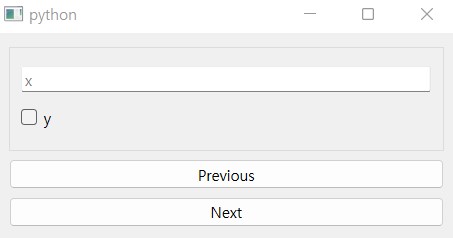
Widget with model
Default value example
In the previous example, the dataclass defines default value but the widget is still empty. It is because default value is not updated to the model and to the empty widget, in order to distinguish the intensional empty input by the user.
To make default values applied to missing fields, set DataclassDelegate.ignoreMissing() to False.
from dawiq import DataclassMapper

delegate = DataclassDelegate()
delegate.setIgnoreMissing(False)
mapper = DataclassMapper()
mapper.setItemDelegate(delegate)
mapper.setModel(model)
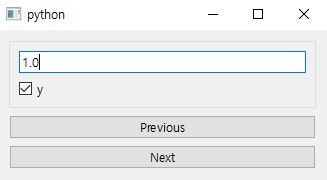
Widget with default value used for missing field
Data converter example
In this example, we define the data converters for CustomClass, which we used in Specifying type hint.
from dataclasses import dataclass, field
from typing import Tuple

class CustomClass:
    def __init__(self, x: int, y: int):
        self.x = x
        self.y = y

@dataclass
class DataClass:
    custom: CustomClass = field(metadata=dict(
        Qt_typehint=Tuple[int, int],
        toQt_converter=lambda obj: (obj.x, obj.y),
        fromQt_converter=lambda args: CustomClass(*args),
    ))
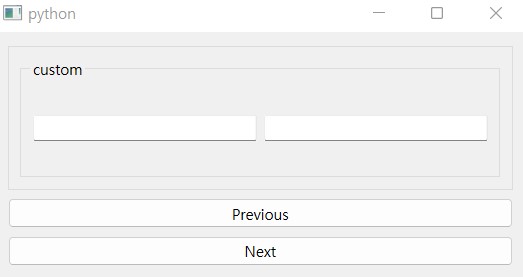
Widget with model compatible to custom type
Tuple from the field widget is converted to CustomClass before being stored in the model, and CustomClass from the model is converted to the tuple and displayed on the widget.